Can I capture personal income in a Program Workflow
This article will explain how to capture personal income (in a program workflow) versus Household income.
In order to do this, you must start with a Program Workflow. If you are creating a new workflow or updating an existing one, please add in a new Workflow Action Step using the panel Type: Personal Income.
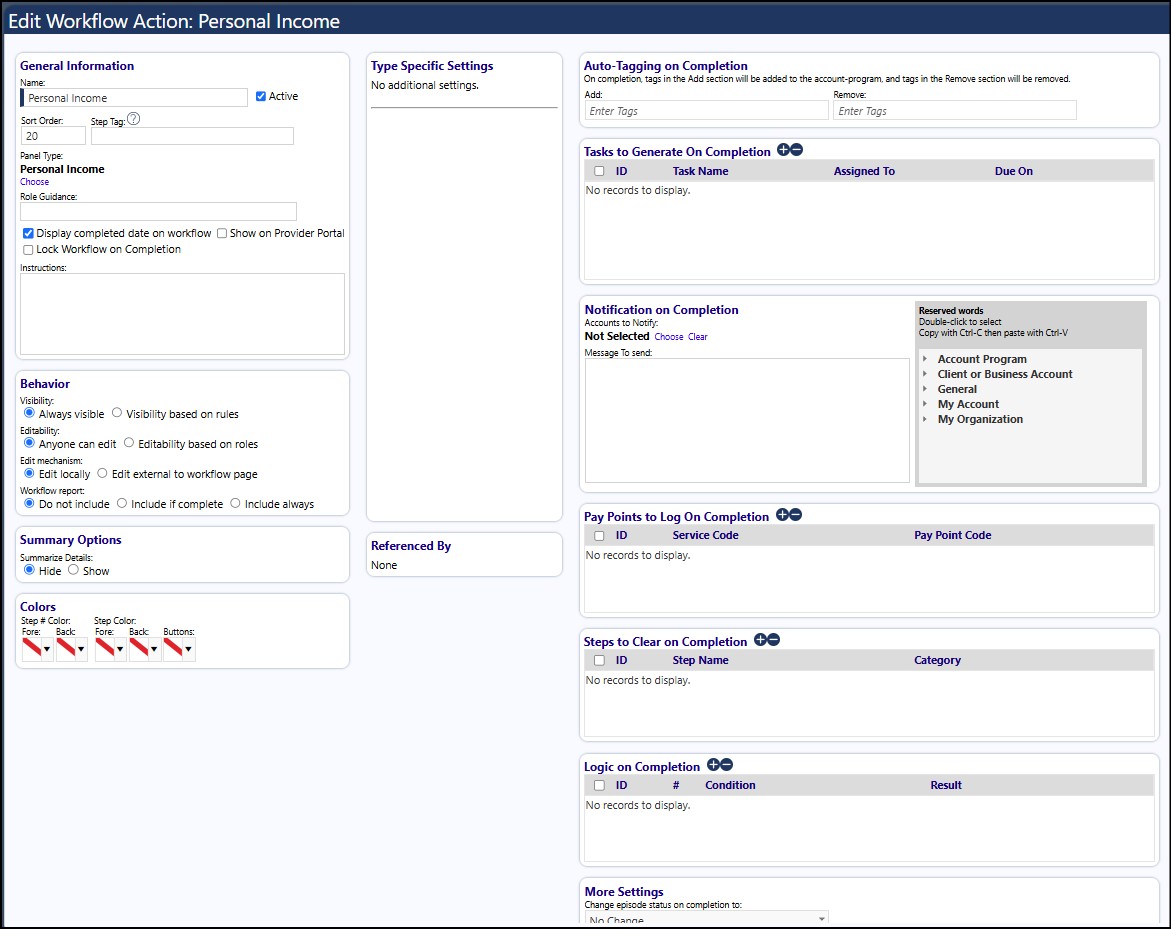
Once you complete this step,please do the following:
- Please select your desired Program (Resources > Programs & Activities > Programs)
- Click the Edit button to enter into the Program Edit mode
- Either link your new Program Workflow to the Program or change the existing Program Workflow from the existing workflow to the new one you created
- Click Apply to save the change and to remain in the Program page
- If everything else is okay, you can click Save to save your Program and its associated Program Workflow
When you enroll a client into a Program, you can either add them from the Client Account Profile page (from the Program side panel) or add them directly from the Program
* When adding from the Program, make sure you are in the Program Edit mode first
* Select the Clients tab
* Click on the '+' and Choose a Client to add to the Program
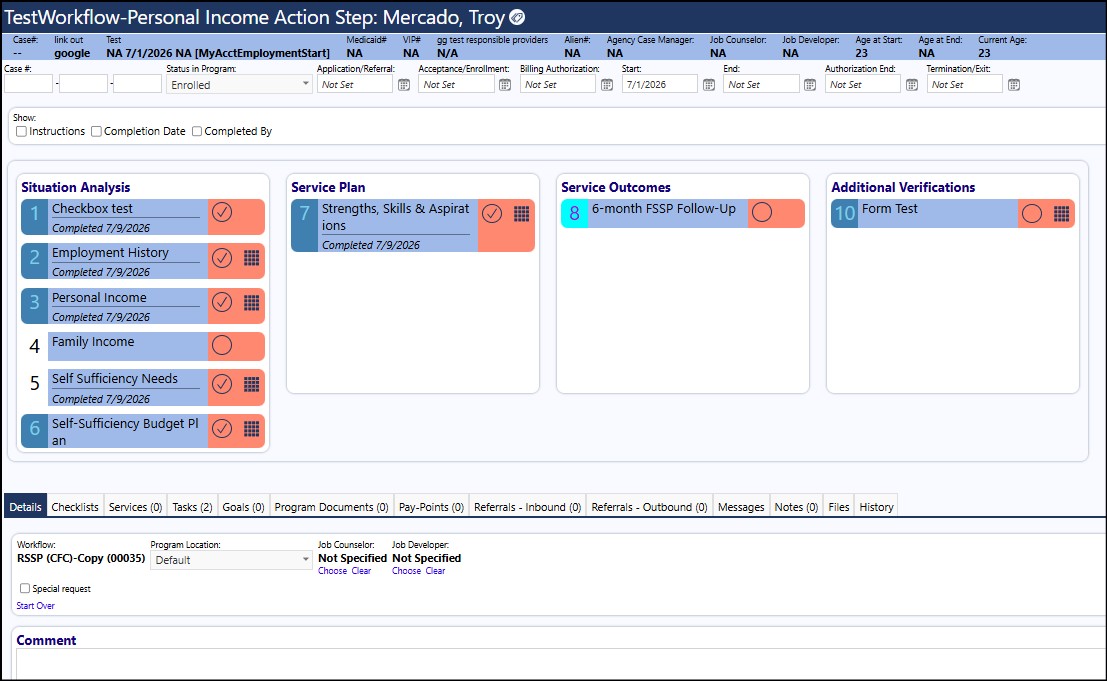
The Workflow will open
* Click the Apply button to make the workflow screen is active
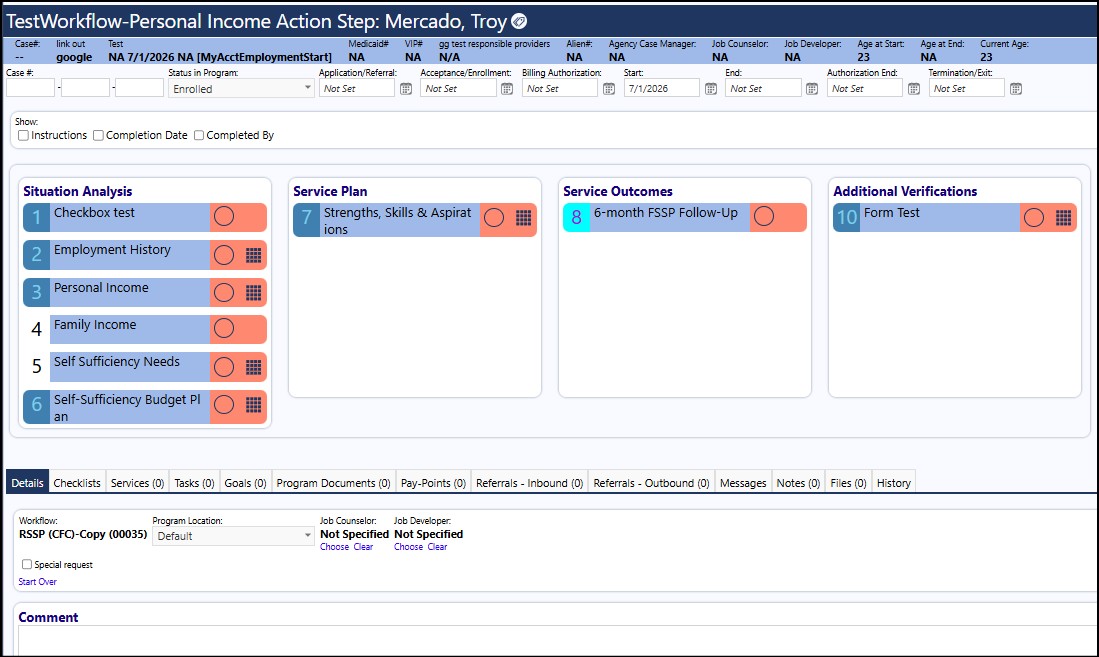 * Work through your Program Workflow steps
- When you get to the step "Personal Income", click on the checkerboard looking icon (this is the edit button for this step)

- Click on "Add New"
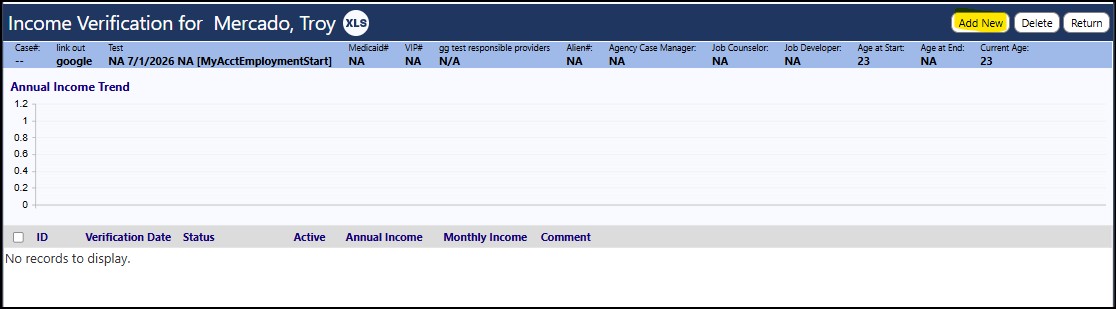
- Enter the required Verification Date and Verification Status
- Enter the Income Sources and select the Amount (frequency)
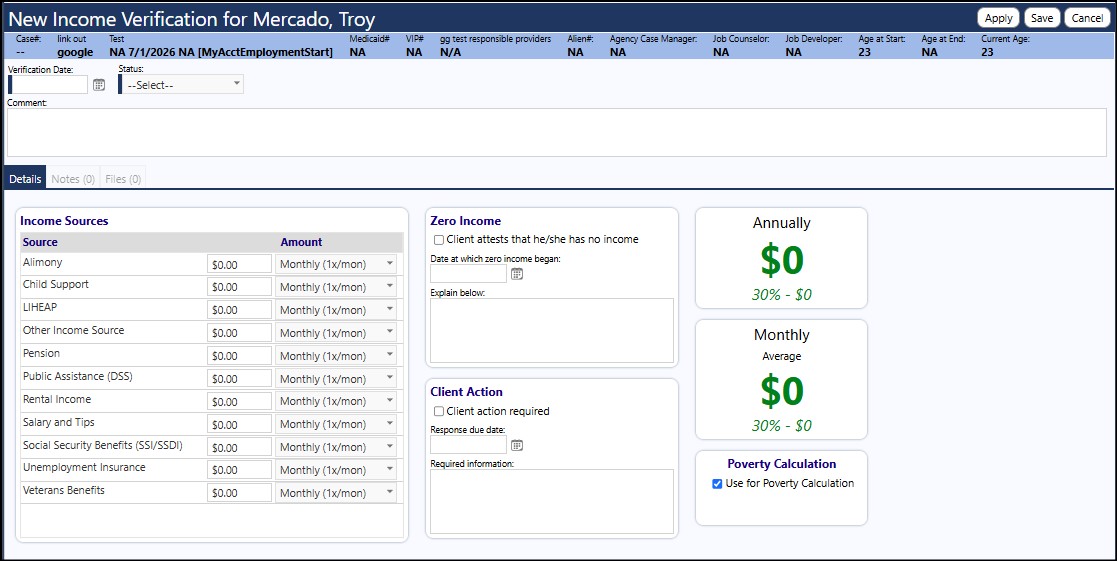
- Click Apply so the calculations are run
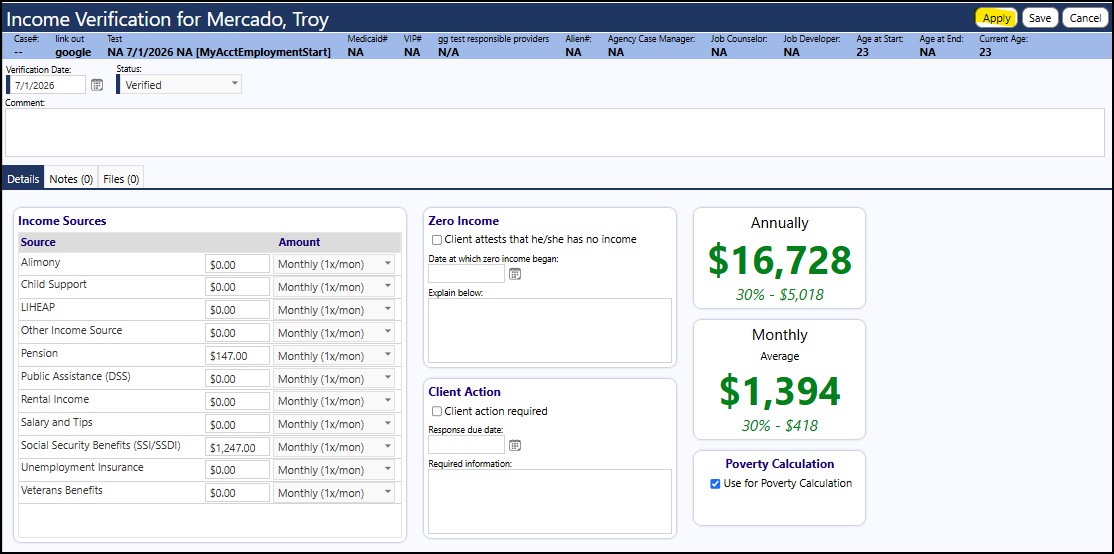
- Click Save
A summary of the income will display along with the annual income trend over time
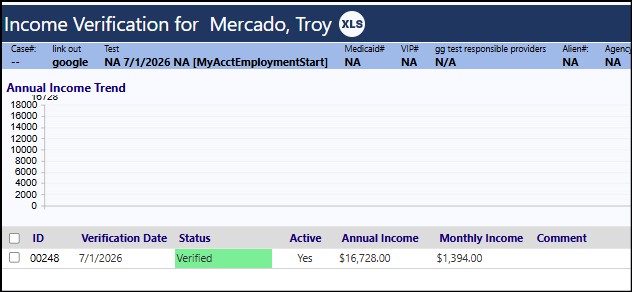
-
Click Return
-
Complete that step in the Program Workflow and continue with the remaining Program Workflow steps