On the My Dashboard page, there is a panel where, if you have access to the page, you can view your Clients. (Refer to the article: How can I setup the MyDashboard page: Link)
One of the ways you can assign yourself as the Case Manager so you can view the clients is to use the Program Case Manager settings.
You do this by setting up your Program Workflow to use Program Roles.
- Access the Program Workflow in Edit Mode
- Name Program Role 1: "Case Manager"
Example:
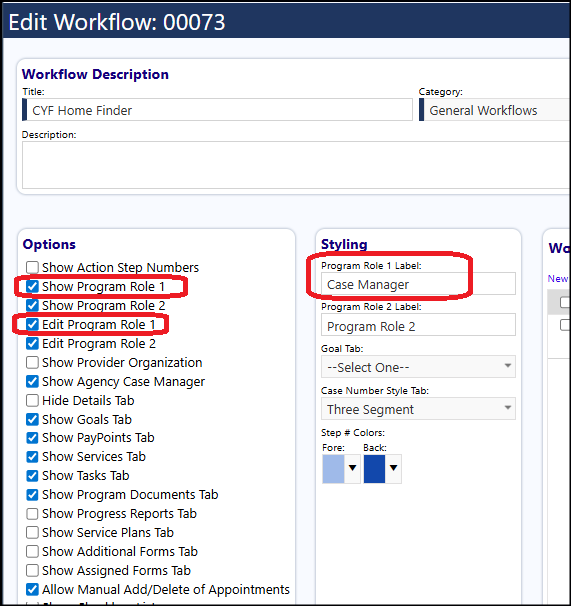
Then it's usable with the existing bulk tool. The AssignCaseManagers page works by assigning to program role 1.
- Configure MyDashboard to show clients where they are program role 1:
- Navigate to the MyDashboard Page
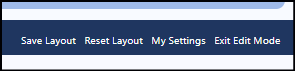
- Click on the Edit Layout button in the upper right hand corner of the screen (looks like a gear)
- Click on My Settings
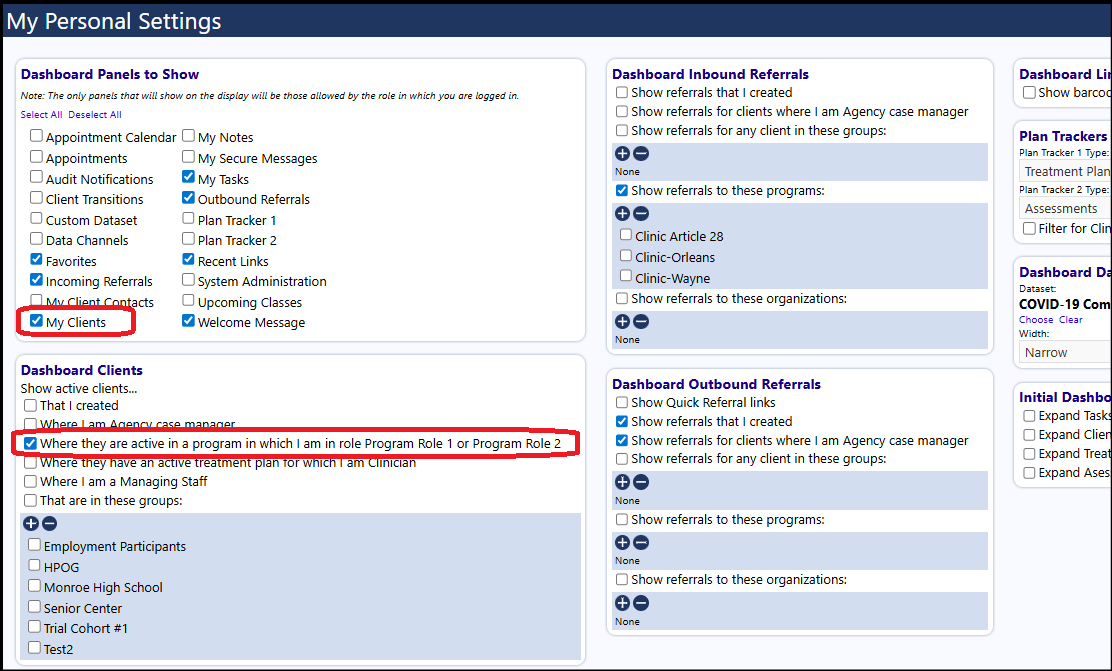
- Make sure the My Clients box is checked (in the Dashboard Panels to Show)
- Check the box for "Where they are active in a program in which I am in role Program Role 1 or Program Role 2" (in the Dashboard Clients panel)
- Click Save
Example:
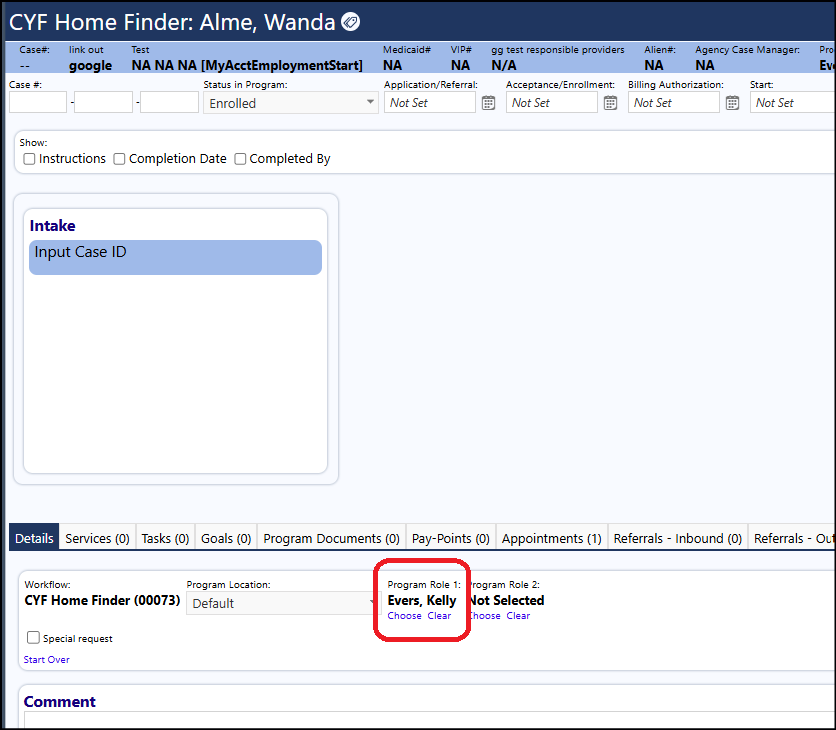
Then, as you enroll clients into your program, you have to set the Program Role 1 to the name of the individual who is the Case Manager.
Example:
And, when that Case Manager logs in, they will see those clients on their MyDashboard page, in the My Clients panel.
Example:
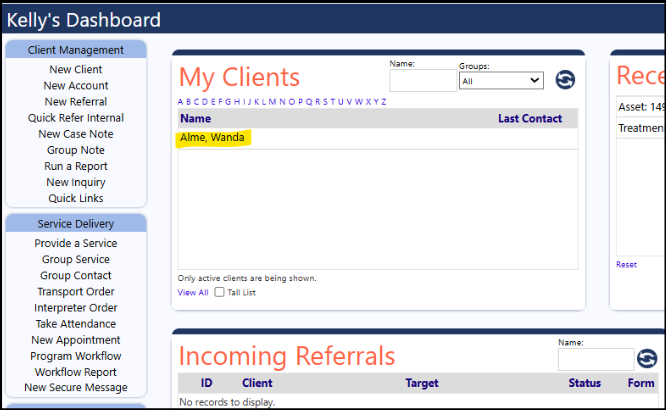
So, you don't have to go into each account program to update the Program Role 1 Case Manager; you can...
- access the Program in Edit mode
- select all of the clients listed on the Client tab for that program
- click on the drop down for Bulk Operations
- select Assign Program Role 1
When you click on that, you can choose the staff member to assign to that program role... and when you click Select, the Program Role 1 selected staff member name will be updated in Bulk, for all the clients who had been selected.
Example of single client in the program (the bulk update works the same for one or more clients in a program):
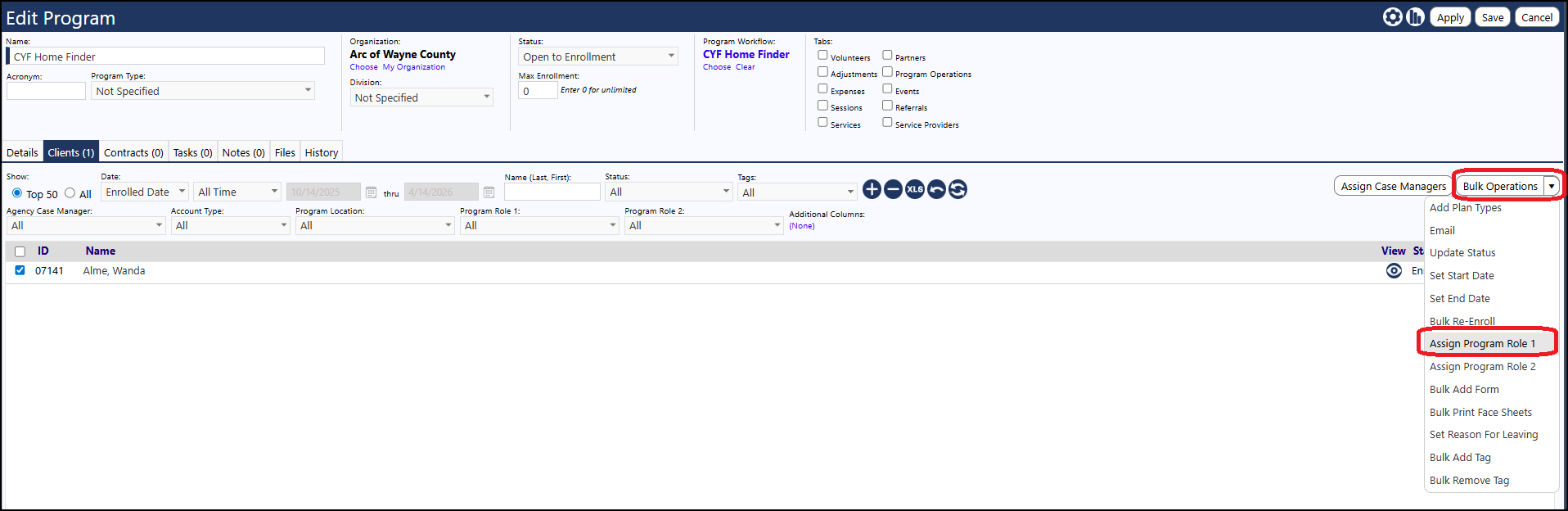
The Bulk Operations button only displays when in the Program Edit mode.