You may have received an error similar to the following:
"Feature Not Authorized - The link you selected is not available due to system security settings for your account. If you need access to this section of the application, contact your system administrator and they can access it for you or can grant those privileges to you. P-22"
You might be asking yourself, does that P-22 mean something?
The answer is yes!
The P-22 code means that your account role is missing a Privilege (P) - also known as a Functional Right.
The 22 identifies the privilege that is missing. If you were to search for 22 in the account role Functional Rights, you will find the privilege that is missing:
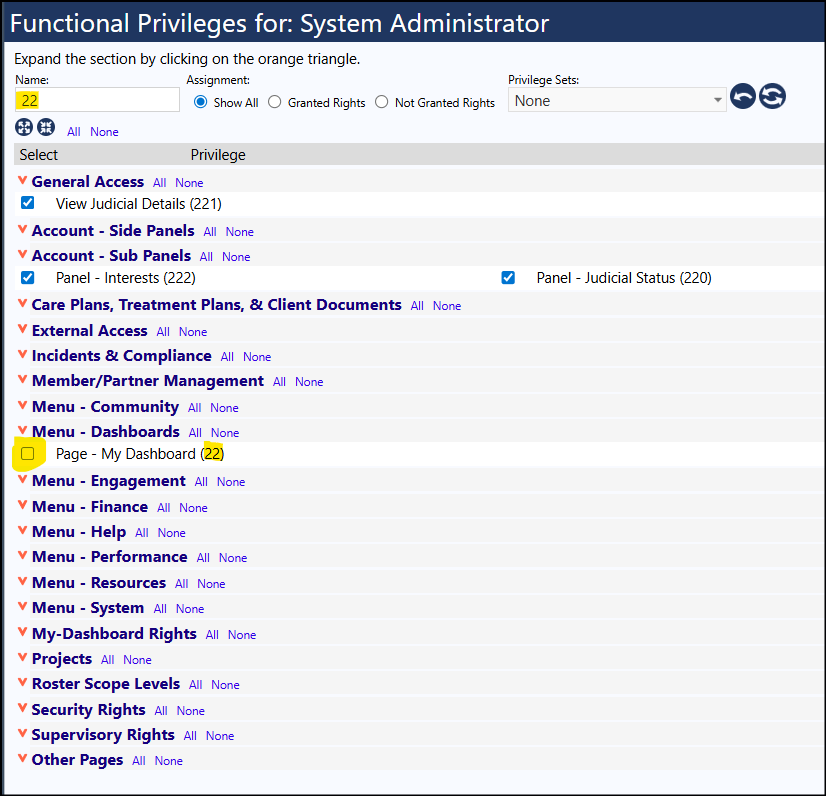
Checking that box to the left of that Functional Right and saving your account role will eliminate that error and will grant you that right.
As with many pages in IMPOWR, your account role may also need Entity rights. Entity Rights tell you what you can do on that page such as View, Add, Edit, Delete.
If you get an error somewhat similar to:
"The link you selected is not available due to system security settings for your account. Please contact your system administrator and they can access it for you or can grant those privileges to you. E-229-3"
The 'E-229-3' works similarly to the missing Functional Rights code, but instead of missing Functional Rights, this code reflects a missing Entity (E) Right. (Whereas for Functional Rights, or Privileges, the first letter of the code is 'P', for Privilege). The 1st set of numbers in the Entity Right code is the number of the Entity Type (like account, organization, program, etc.) and the 2nd set of numbers represents the actual privilege you are missing (view, add, edit, or delete). On the entity rights edit screen, the columns of checkboxes are ordered based on that number, so 1 is the first column, 2 is the second, 3 is the third, and so on.
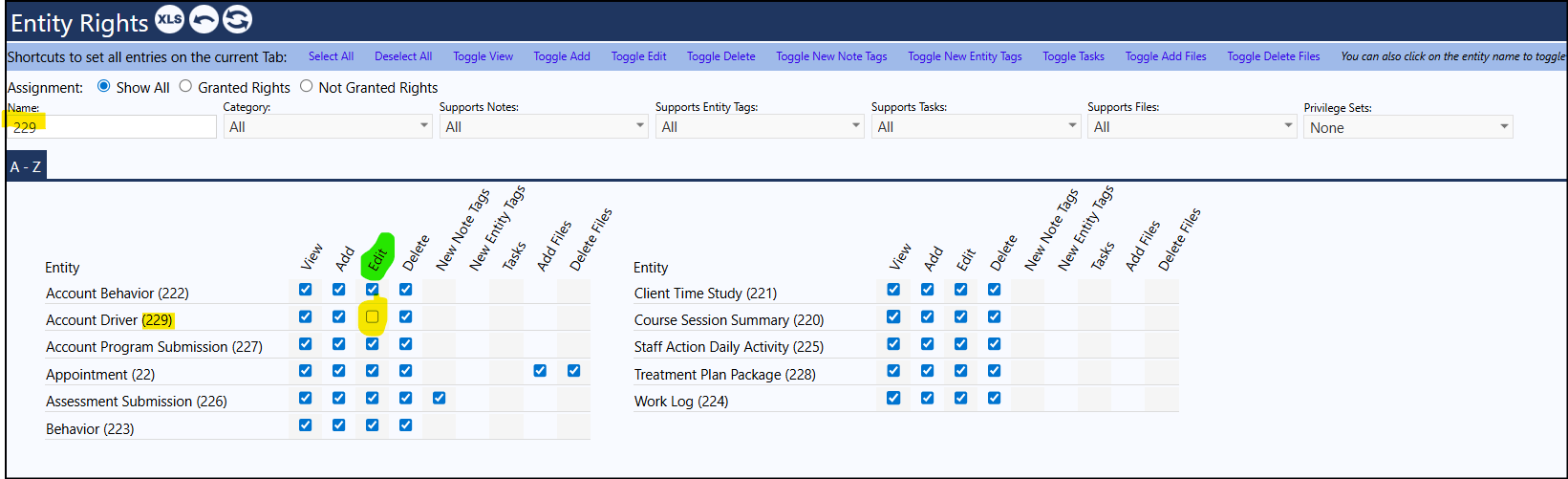
So, if we want to search for E-229-3, we know it is for Entity Right 229 and we are missing the setting in column 3. In other words, the Account Driver Edit Entity Right (without this we cannot make any changes to the Account Driver field):
Another way to search to find these codes is the following:
- Select an account role such as the System Administrator Account Role
- Open that role
- Click on Summary Report
- Select the radio button for "Export list of selections for purposes of documentation (includes all items)"
- Click 'Export'
- Open the spreadsheet that is generated
- Highlight the column labeled "Value 1"
- Search for the code (example 229)
- Once you find the code, not whether the identified row in your spreadsheet is for a Privilege or an Entity Right
- If it does not reflect the error, click on Find next to go to the next entry with that value. Continue as needed.
- If you are searching for an Entity Right, when you find the entry in the spreadsheet, the system will show the possible selections for the last number listed (in the above example, I am referring to the '3' in E-229-3). That number reflects what you can do with that Entity Right... Add=1, View=2, Edit=3, and Delete=4.
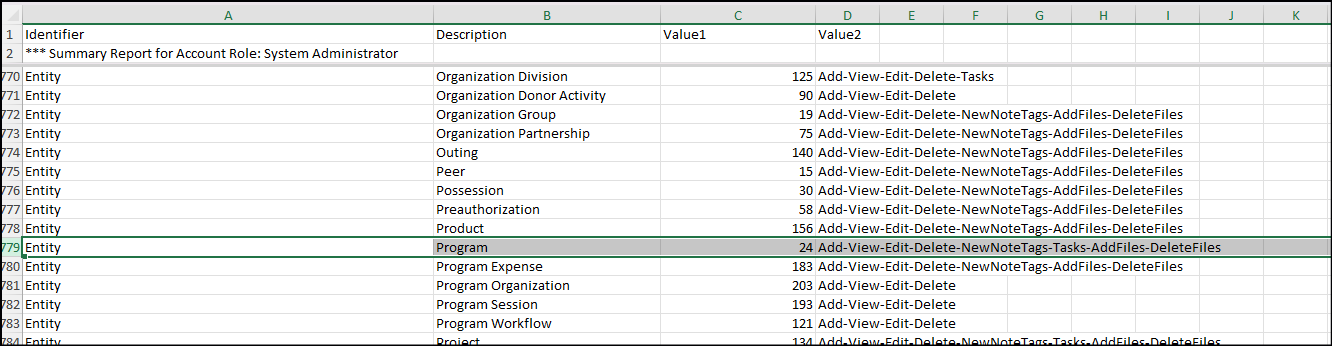
So, if you were to get an error displaying 'E-24-3' and you following the above steps, in the summary report spreadsheet, you would find the following pointing to an error related to Programs and would know it is related to a missing Edit entity right:
If you run into any issues or have any questions, please reach out to our helpdesk.
In case this spreadsheet looks familiar, this same spreadsheet can be used to copy account roles within an IMPOWR instance and between IMPOWR instances.