Changing the names of the tabs in the Activity Dashboard...
- Open the activity dashboard (Dashboards > Summary Pages > Activity Dashboard)
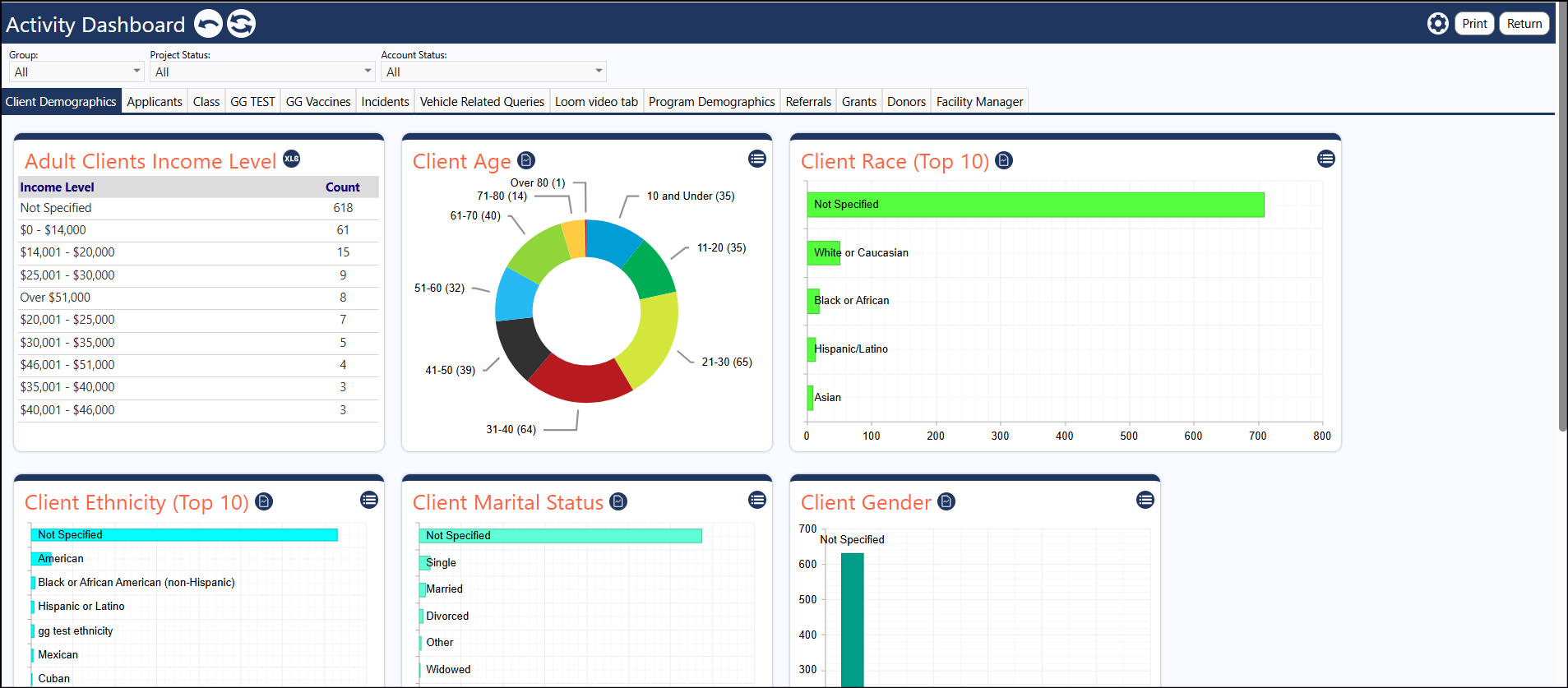
- Click the setup button (looks like a gear, next to the print button on the dark blue banner, towards the upper right side of the screen, below your name and account role)

The Dashboard Settings panel will display:
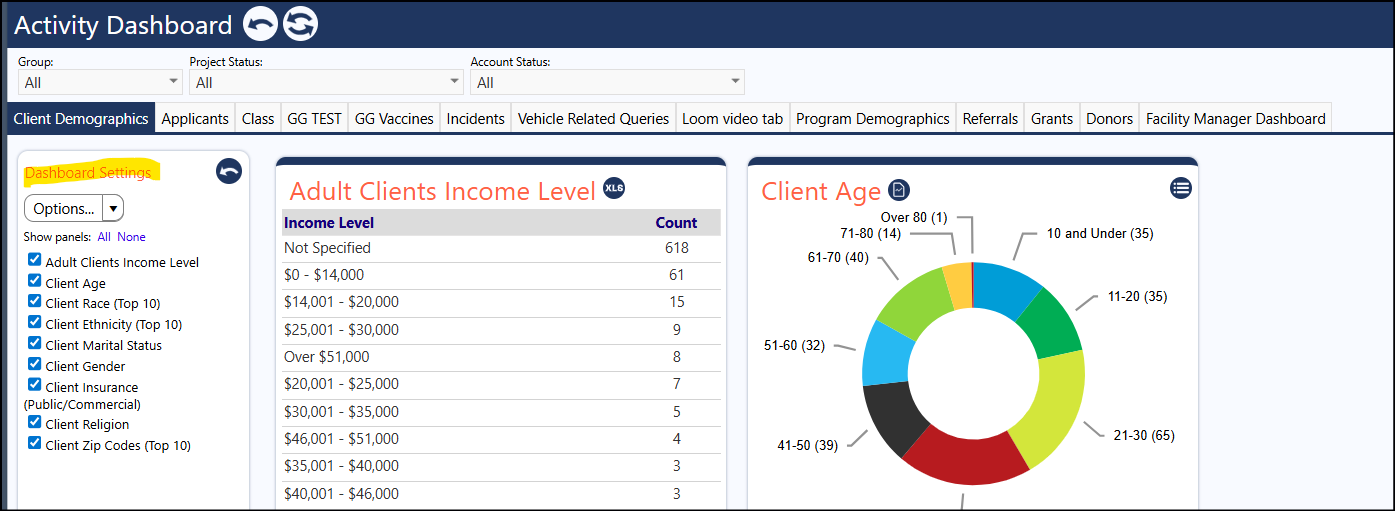
- Select the Options drop down and click Configure Tabs
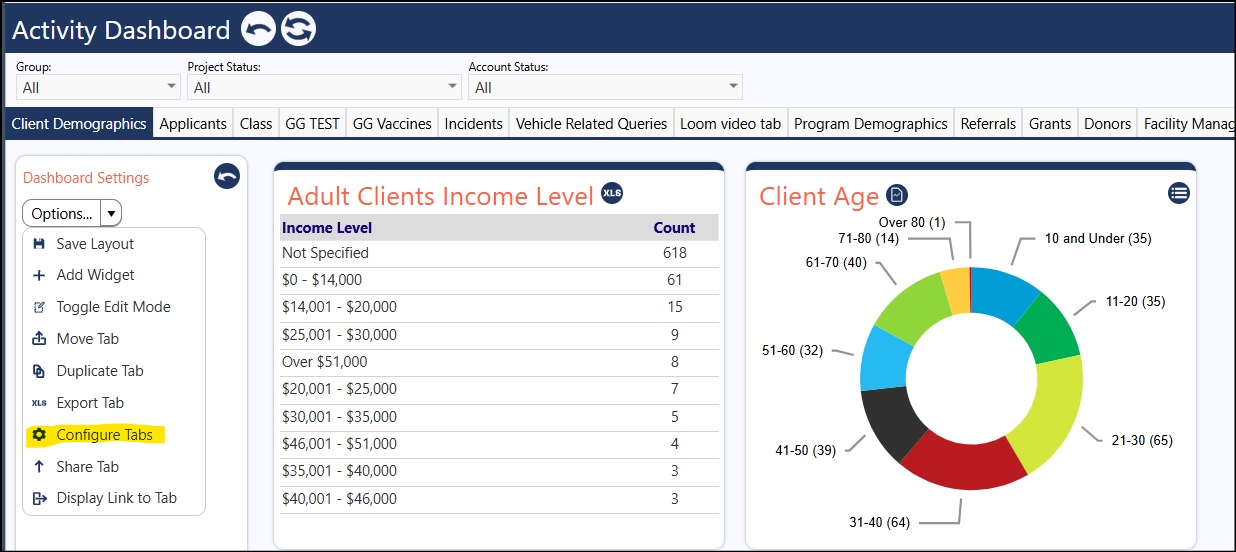
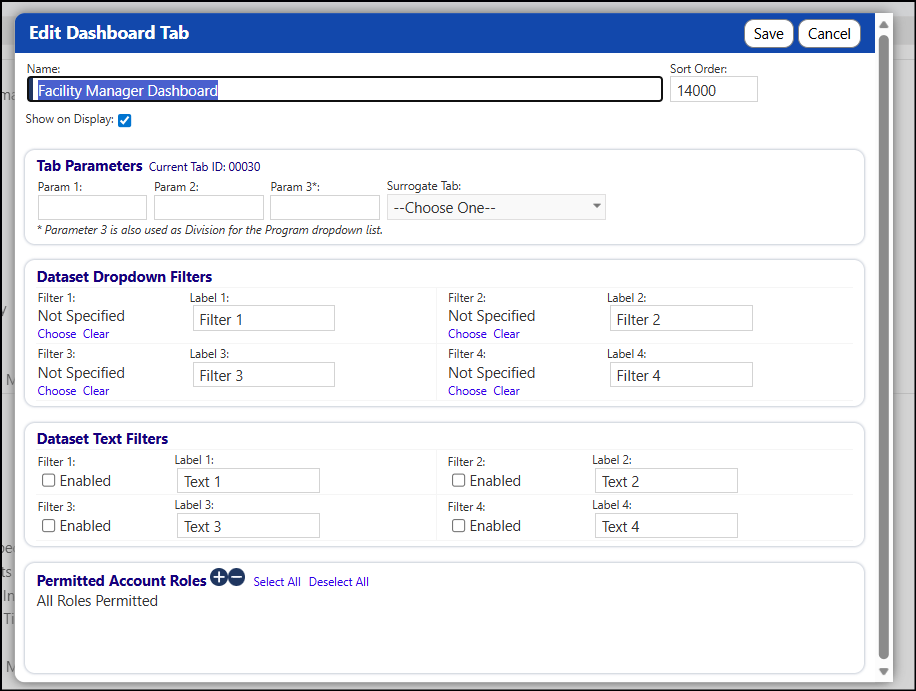
- Click on the name you wish to change (or click the setup button (gear icon) to the right of the name you wish to change)
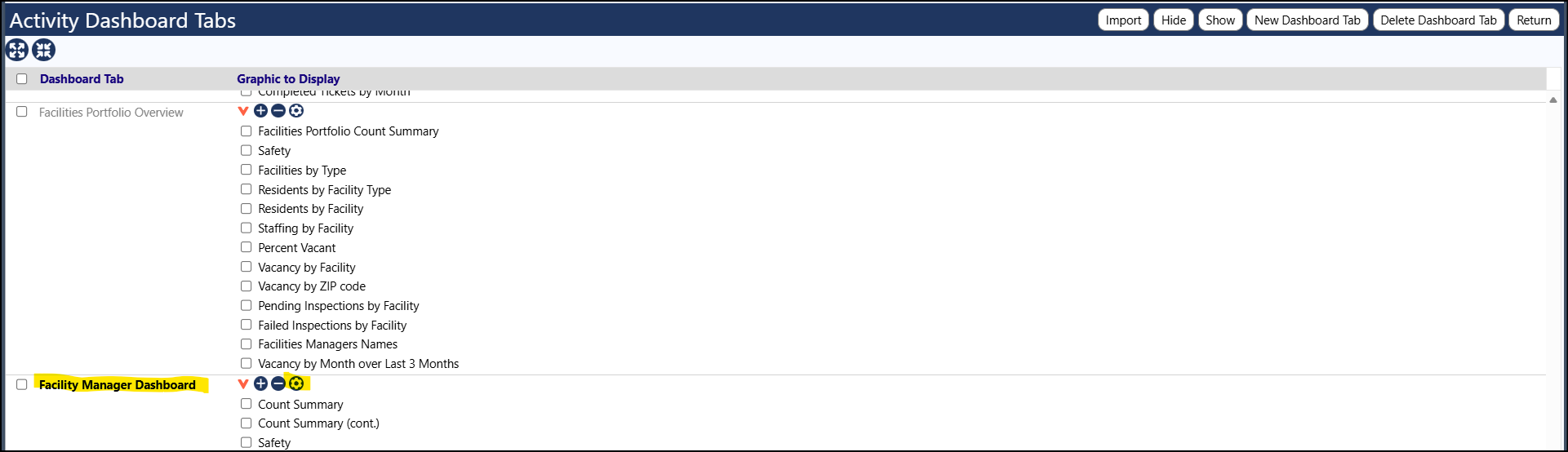
- In the window that opens, change the Name and then click on Save
Changing the Sort Order of the Tabs
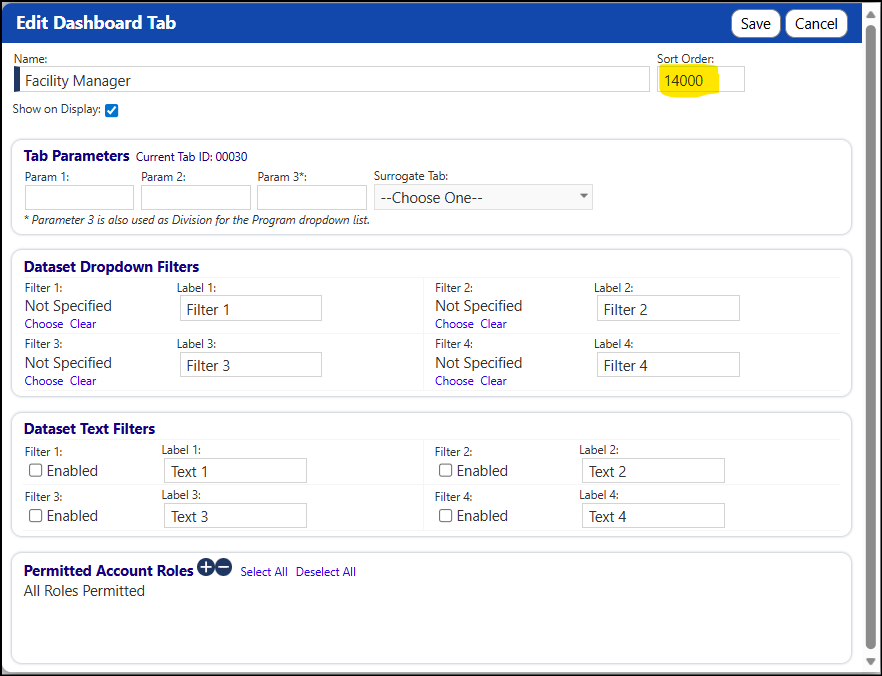
If you want to change the order of how the tabs are displayed, while this page is open, change the sort order number. Higher numbers move the tab to the right, while lower numbers move the tab to the left. The tabs are displayed sequentially, based on the sort order number. So, if you wish to move the tab in between other tabs, give the tab you want moved a sort order number that is higher than the sort order number for the tab on the left, and smaller than the sort order number for the tab on the right. You can view the sort order number for any tab by repeating set 4, above.
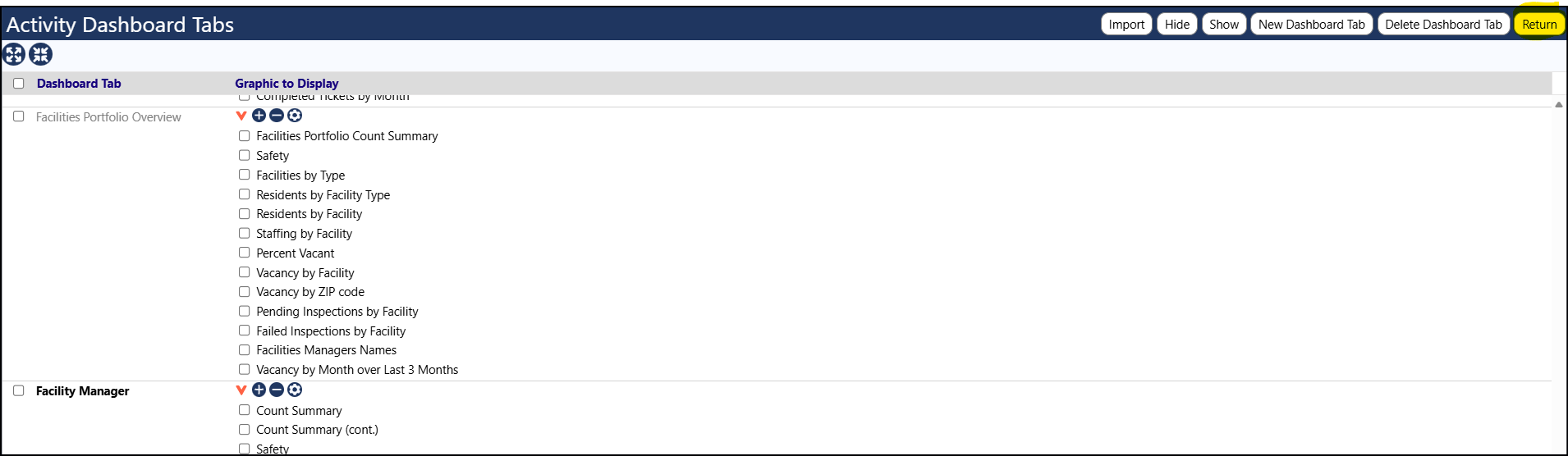
- Click Return to exit out of the Activity Dashboard Tabs
- Click the reset icon in the Dashboard Settings panel (to remove the ability for someone else to make changes without the proper permissions (the icon is an arrow, curling around to the left))
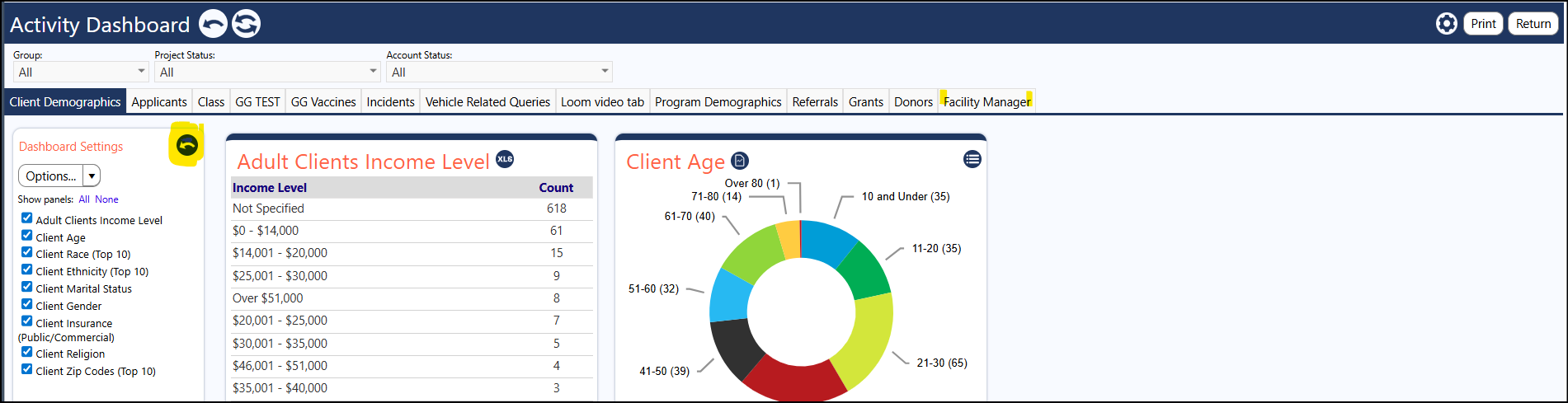
That completes the needed changes