Step 1: Create the Contract Category and Contract subcategory:
1.) Access Contracts from the menu
2.) Click the Edit Categories button (to the right of ‘Categories’)

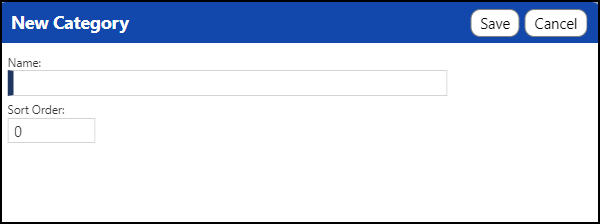
3.) Click New Category
4.) Enter the category name and click Save (example: '2021')
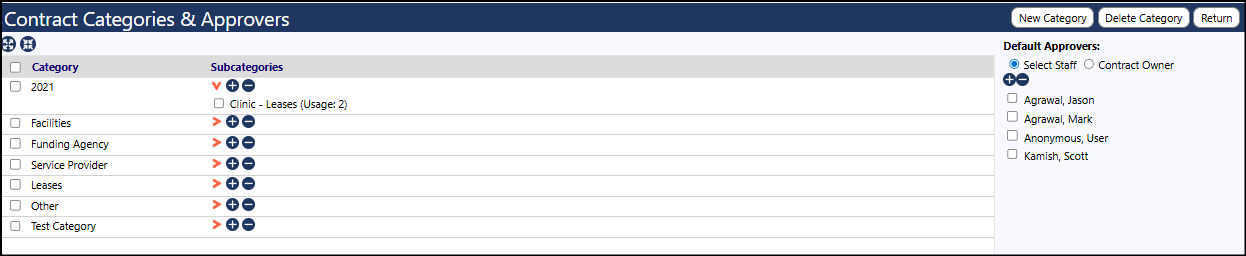
5.) Locate the new Category in the Contract Categories and Approvers list
6.) Click on the ‘+’ to add the contract SubCategory and Save (example: 'Clinic - Leases')
Step 2: Assign the contract category to the account role
7.) Access Account Roles from the menu
8.) Select the account role you wish to provide access to
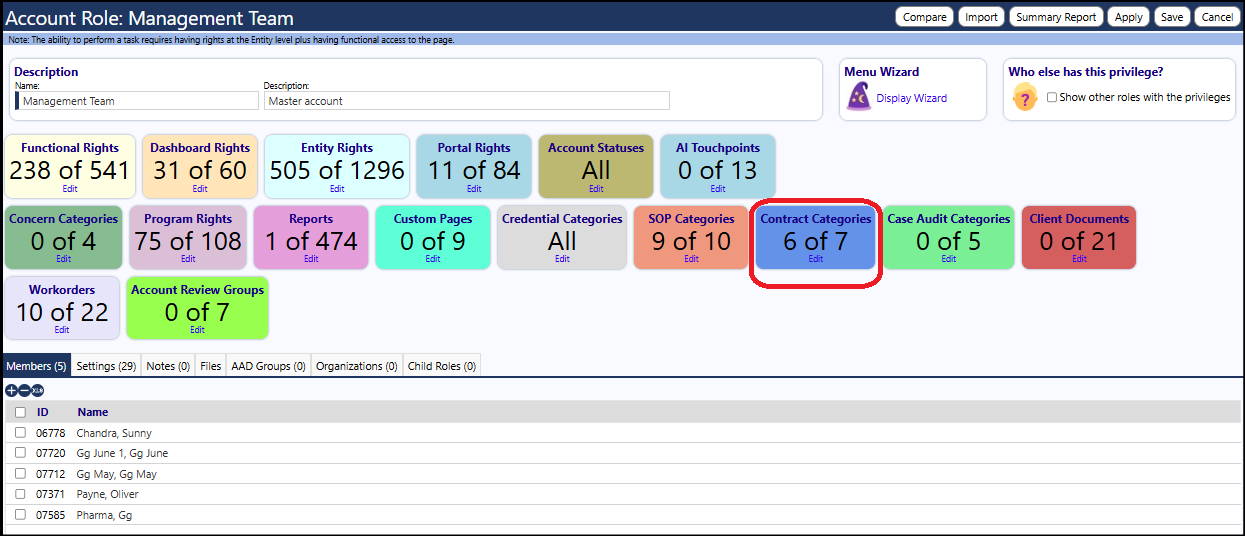
9.) Locate the box in the account role settings, for Contract Categories and click Edit
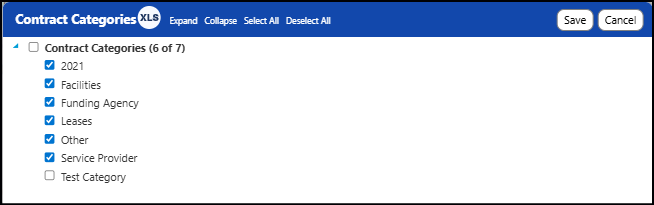
10.) Select the new '2021' Contract Category and Save
example:
11.) Save the Account Role
Done.
Be sure to add this contract category to the System Admininstrator account role in addition to the user's account role.
If a user with this account role is currently logged into IMPOWR, they will need to log out of that role and then log back into it, for the new settings to be applied.