In IMPOWR, Newsletters can be found in the Memberships section of the Community menu item. (Community > Memberships > Newsletters). Users can use IMPOWR to track and manage their newsletter subscriptions but cannot create newsletters at this time.
Access:
In order to access Newsletters, users must have account role functional right privileges which provide them with access to the accounts page, the Newsletter panel in the account profile, and/or the Newsletter page. They must also have account role entity rights which grant them the privileges to view, add, edit, delete, and add or delete Newsletter files.
Accounts:
If enabled for the account type, the Newsletters panel in the account profile displays the newsletters the account subscribes to:

When in Edit mode, users can Add/Delete Newsletters:

When clicking on the '+' to add a new newsletter, the list of available Active newsletter selections from which to choose from displays:
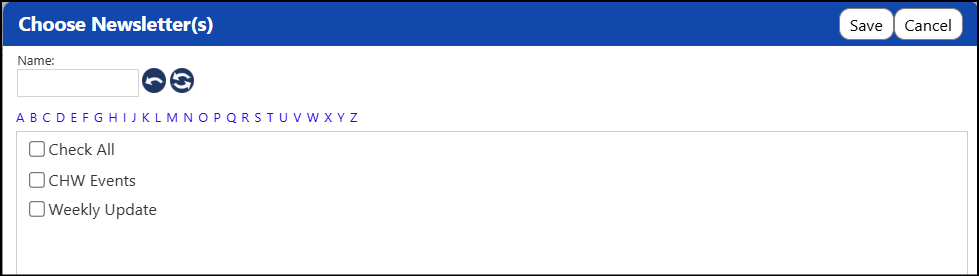
Even though a newsletter may be Active, you should always check to see if they are accepting subscribers before adding a newsletter to an account.
Newsletters:
Newsletters are tracked and managed on the Newsletters page (Community > Memberships > Newsletters).
Newsletters cannot currently be created in IMPOWR.
The Newsletters page is used to identify and manage the status of newsletters (Active (accepting subscribers), Active (not accepting subscribers), Inactive), track subscribers and their subscription statuses, and to manage uploaded newsletter files.
When you open the Newsletters page, the Newsletters list will display:

Clicking on the ID for any of the newsletters will open a page where you can view the name of the Newsletter, see the status, read any entered comments, view the subscribers and their contact information, as well as see the start and end dates of their subscription and whether their subscription is active or not.
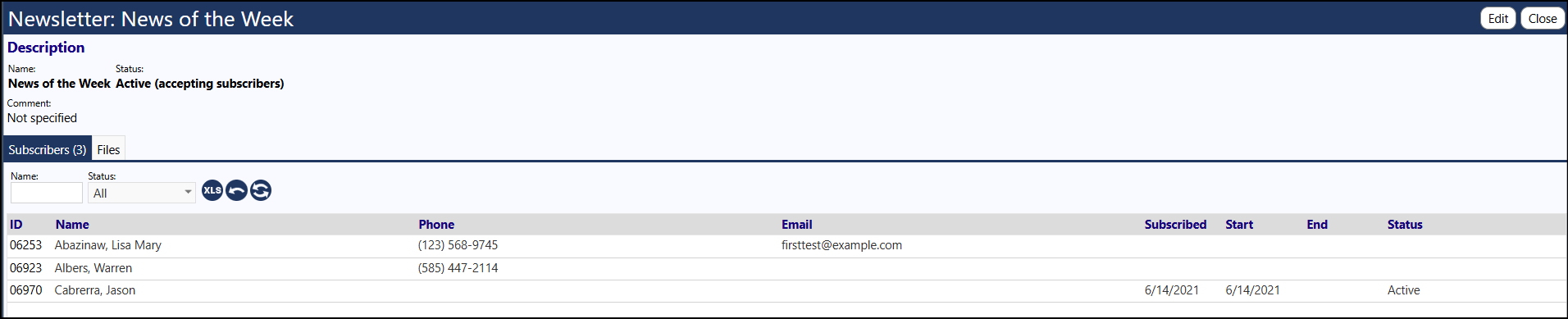
When in Edit mode...
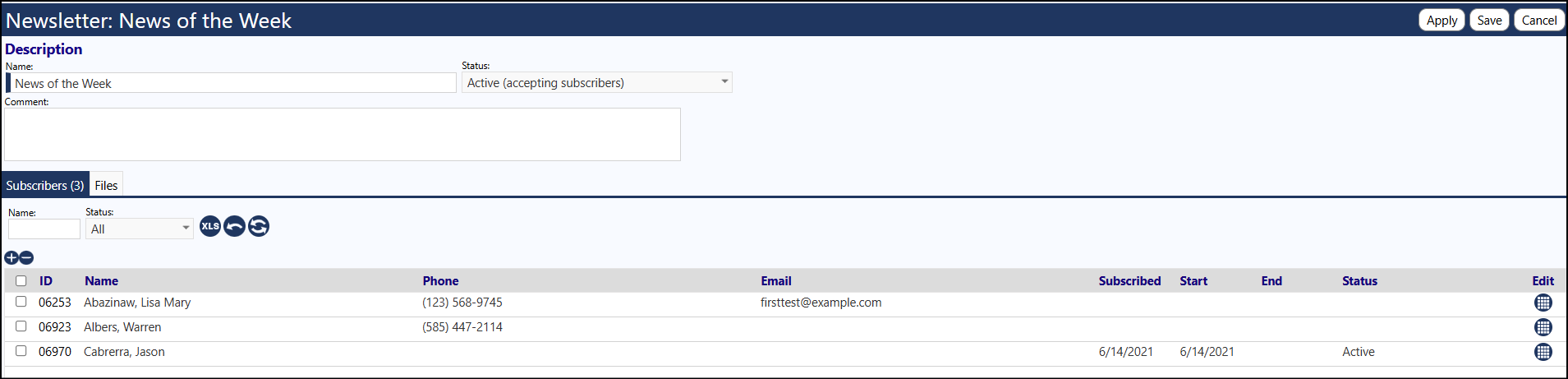
You can rename the Newsletter, change the status, add a comment about the newsletter, can click on the '+' or '-' to add or remove subscribers, and can click on Edit to set their subscription status as Active, Cancelled, Completed, or place it On Hold... and set the Subscription Dates:
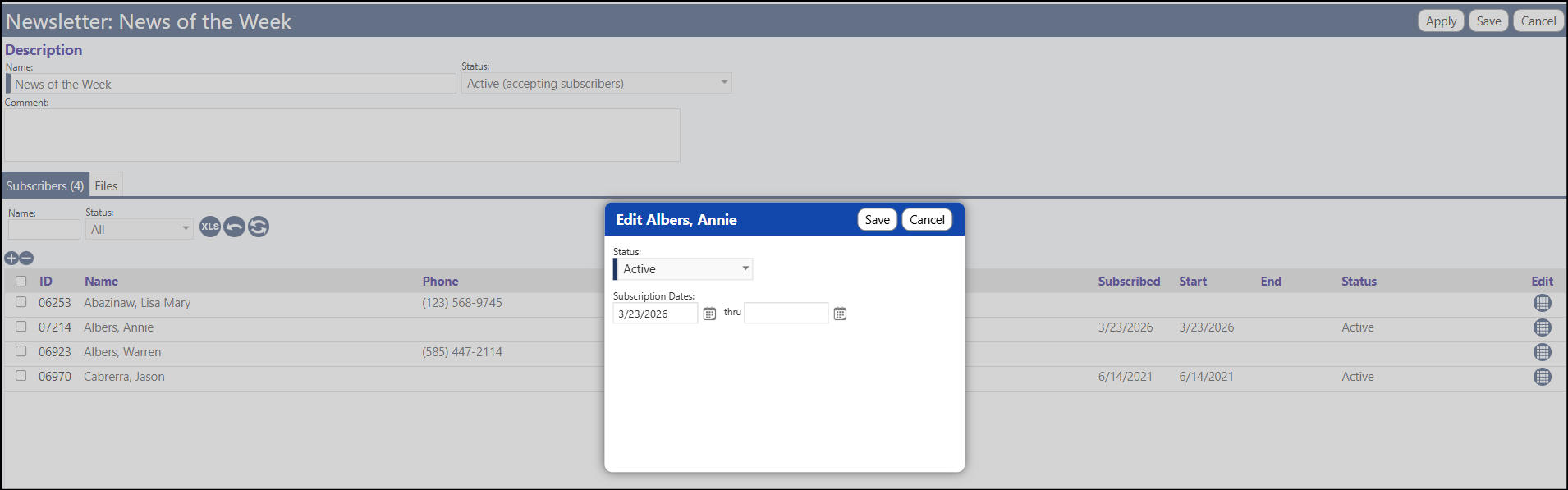
The 'Subscribed' date reflects the date when the user was added as a subscriber to the newsletter.
The Files tab in the Newsletters page allows you to upload, delete (remove), and rename uploaded files. Clicking on the Edit icon allows you to set file expiration dates (for display purposes only).
